 [TP1]
[TP1]TP1 for Claude and ChatGPT
Ask your AI about your trading. It reads your real numbers.
The TP1 connector lets Claude or ChatGPT read your Stats, your Journal trades and, if you allow it, your TP1 Memory. Ask in plain English and get answers with the count and the window behind them, not a guess.
Two minutes. You need a Taking Prophets account with Journal access.
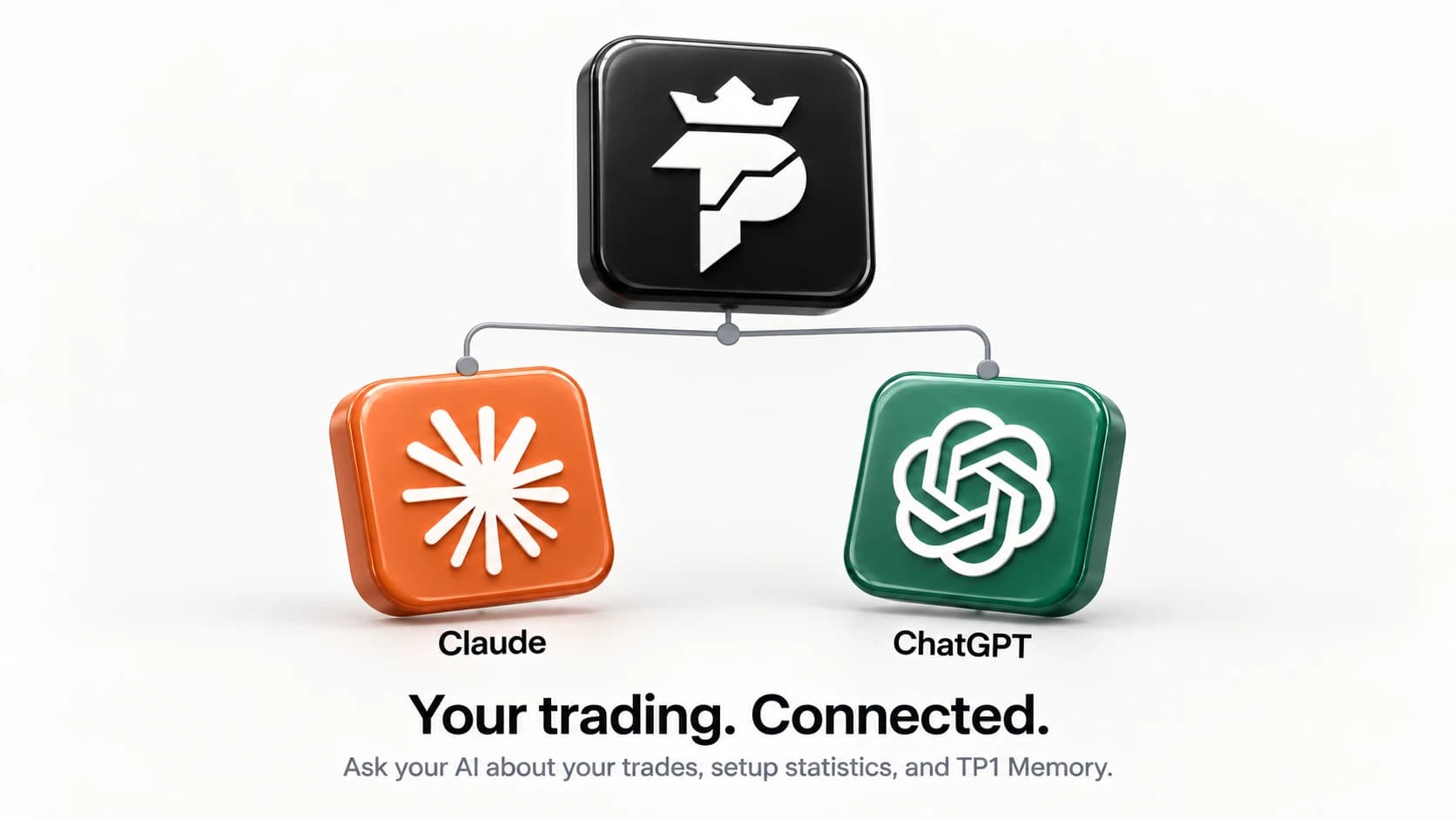
What it is. MCP is how an assistant asks another service for data.
MCP, the Model Context Protocol, is an open standard for connecting AI assistants to the tools and data you already use. TP1 runs an MCP server. When you add it to Claude or ChatGPT, the assistant can call TP1 while you chat: look up how often a setup worked, pull your trades from this morning, or read what TP1 knows about how you trade.
You choose what it may read when you connect, and you can revoke it at any time.
Your Stats
How often a setup played out on NQ, ES and GC, with the count, the window and the method on every number. The daily bias call and its record. What is in play for the next session.
Your Journal
Your own trades as you logged them: day, time, session, symbol, side, size, entry and exit, P&L, setup and notes. Your patterns and your splits by session or setup. Only ever yours.
Your TP1 Memory
If you allow it: the profile TP1 keeps of how you trade, with the evidence behind each line. Off unless you tick it on the consent screen.
Suggestions, never edits
If you allow it, the assistant can suggest something for TP1 to remember. It waits on Settings, Memory until you keep or dismiss it. Nothing is written without you.
Set it up. Find TP1 in Claude’s directory, or add one URL. Sign in with TP1 when your assistant asks.
https://www.takingprophets.com/api/mcpClaude (claude.ai, desktop and mobile)
TP1 is listed in Claude’s connector directory, so there is no URL to paste.
- Open Claude and go to Customize, then Connectors, and select Browse connectors.
- Search for Taking Prophets and open the TP1 connector.
- Select Connect. Claude opens the TP1 sign-in and consent screen. Pick what Claude may read and approve.
- In a chat, turn TP1 on from the + menu under Connectors, then ask a question.
Not seeing it, for example on a Team or Enterprise plan where an admin manages connectors? Add it as a custom connector instead: on the same Connectors page choose to add a custom connector, name it TP1 and paste the connector URL above.
ChatGPT
TP1 is not in ChatGPT’s app directory yet, so you add it yourself with the connector URL above.
- Open Settings, then Apps & Connectors. Custom connectors may need Developer mode, under Advanced settings; which plans offer it depends on OpenAI.
- Select Create, name it TP1, paste the connector URL and choose OAuth. Leave the client ID and secret empty: TP1 registers ChatGPT automatically.
- Sign in with TP1 on the consent screen and approve.
- Start a chat, add TP1 from the tools menu, then ask a question.
Claude Code
- In a terminal:
claude mcp add --transport http tp1 https://www.takingprophets.com/api/mcp - Inside Claude Code, run /mcp, choose tp1 and authenticate in the browser window it opens.
- Prefer a key? Create one on Stats, Connect and pass it as a bearer header instead.
Any other MCP client
Streamable HTTP at the connector URL, stateless: POST JSON-RPC, JSON responses, no event stream. Sign-in is OAuth 2.1 with PKCE and dynamic client registration, discovered from the server’s 401. Developer tools can use a connector key from Stats, Connect as Authorization: Bearer tpk_… instead.
You choose what it reads. The consent screen asks for each of these.
Stats and Journal
Read your Stats reports and your own Journal, including your trades with their entry and exit prices and notes. Always included.
Read your Memory
Read what TP1 knows about your trading (your Memory profile and observations). Off unless you tick it.
Suggest memories
Suggest new things for TP1 to remember. Suggestions wait for you to keep or dismiss them on Settings, Memory. Off unless you tick it.
- Sign-in tokens last an hour and renew quietly. A connection ends after 90 days without use.
- Revoke any app on Settings, Memory; it is refused on its next request.
- The
my_*tools only ever read the journal of the member who connected. - See the privacy policy for what TP1 records about connected apps.
Things to ask. Plain English works.
- “What about my trade this morning? Was it with or against the call?”
- “How often does NQ fill the opening gap on Fridays over the last six months?”
- “Which session do I make my money in, and which one costs me?”
- “What does my TP1 Memory say about how I trade the New York open?”
- “Review my last week against my patterns.”
- “Remember that I don't trade FOMC days.”
Every answer is historical: past sessions or your own logged trades, with the count and the window. Nothing is a forecast or a recommendation, and no live prices or levels leave TP1.
Questions, answered.
What is MCP?
The Model Context Protocol is an open standard that lets an AI assistant call tools on another service. Claude and ChatGPT both support it. TP1 runs an MCP server, so either assistant can ask TP1 for your numbers instead of guessing.
Who can connect?
Anyone with a Taking Prophets account that has Journal access. You sign in with your TP1 account during setup, the same way you sign in to the site.
Can it place trades or change my Journal?
No. Every tool reads. The only write is a Memory suggestion, which waits for you to keep or dismiss it. Nothing connects to a broker.
Is this financial advice?
No. Everything the connector returns is a historical count over past sessions or your own logged trades. Nothing is a forecast, and no live prices, levels or market data leave TP1.
How do I disconnect?
Settings, Memory lists every connected app with when it last read your data. Revoke ends access on the next request. A connection also ends by itself after 90 days without use.
Does Anthropic or OpenAI keep what it reads?
What the assistant reads becomes part of your conversation with it, under that company's terms. TP1 sends only what a tool returns to the account you signed in with. Our privacy policy explains what we keep about connected apps.
Bring your numbers into the chat.
Find TP1 in Claude’s connector directory, or add the connector URL to ChatGPT, and sign in with TP1.